Mirrai Careers
InDesign Resume Templates: When It's Worth $20/Month and 3 Times It Isn't (2026)
InDesign produces the cleanest ATS-safe PDFs of any design tool. Adobe charges $240/year for it. The 3 cases worth paying, the gotchas, when to skip it.

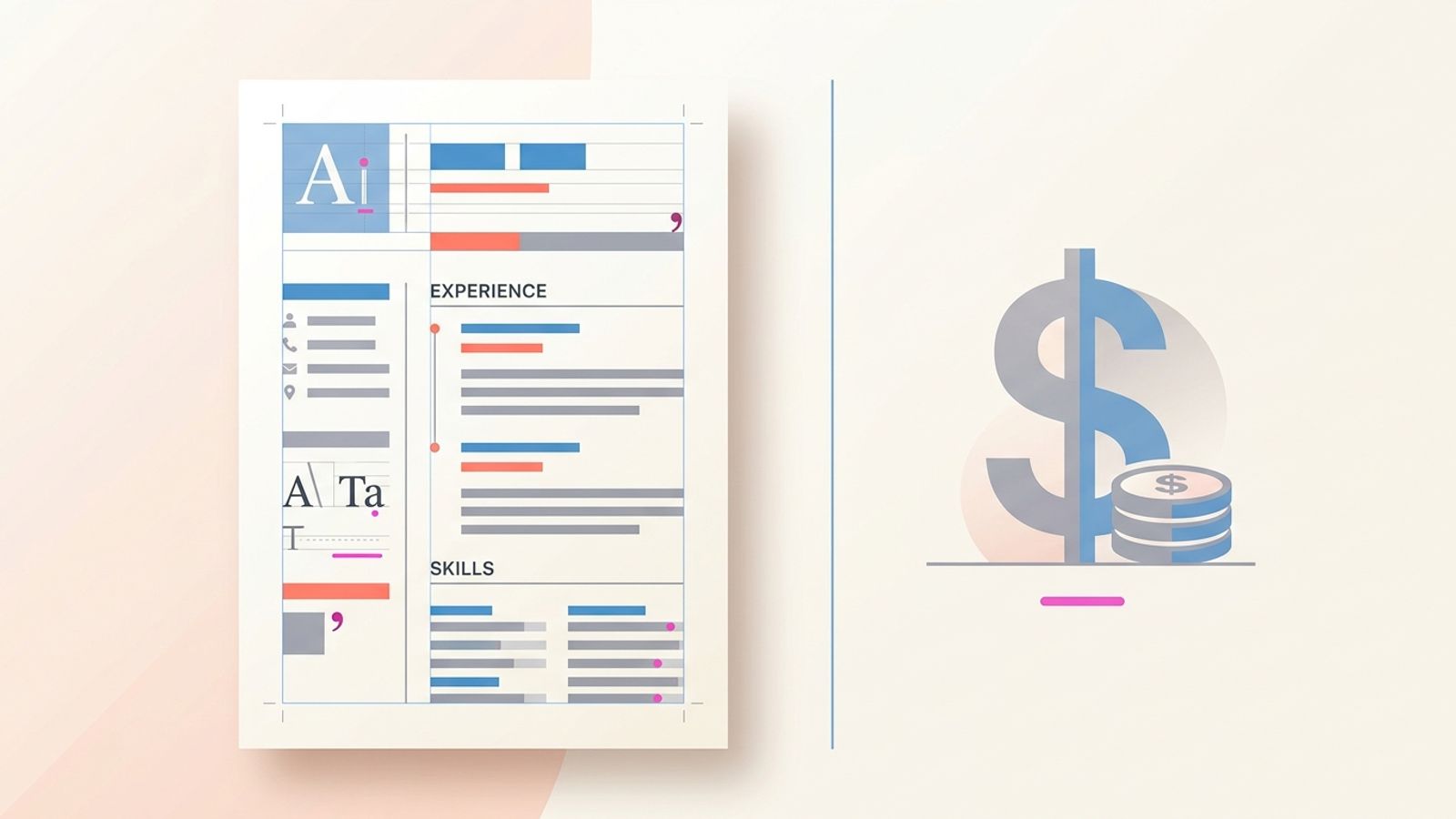
Adobe InDesign sits at the opposite end of the design-tool spectrum from Figma. Where Figma exports PDFs that ATS reads as blank, InDesign exports the cleanest tagged, accessible, parser-friendly PDFs in the entire industry. Where Canva templates use graphics that confuse parsers, InDesign respects text flow at the file-format level. Where Word and Google Docs are free, InDesign costs $20.99 a month, $239.88 a year, $0 if you qualify for an education discount.
The article you have probably read elsewhere goes "InDesign is professional, here are 30 templates, click to download." This article is going to take the cost question seriously. For 95% of resumes, InDesign is overkill. Word, Google Docs, or Mirrai's builder produce equivalent ATS results in less time for free. For 5%, InDesign is the right tool, and the typography quality matters enough to justify the subscription.
Below: when InDesign actually wins, the gotchas that even senior designers hit (Convert to Outlines, spread export, wrong PDF preset), the templates worth using, the export settings that matter, and the moment to skip InDesign entirely and use something cheaper.
Mirrai Careers
Match your resume to any job in seconds
Upload your resume, paste a job description, see your match score.
Try FreeFree month of Pro with code LAUNCH
Is InDesign Good for a Resume? Yes, If You're Already Paying $20+/Month
Three things have to be true for InDesign to be the right resume tool:
- You already have an active Creative Cloud subscription. Buying a $240/year subscription to make a single resume is bad math. Word/Google Docs are free, and Mirrai's builder is also free for the basic export.
- The role you are applying to actually evaluates typography. Senior creative roles, editorial design, art direction, design leadership at print-aware shops. For software engineering, marketing, or operations roles, the typography lift over Word is invisible to recruiters.
- You are willing to learn or already know the InDesign-specific settings (Tagged PDF, paragraph style export tagging, the right PDF preset). Using InDesign without those settings produces a PDF no better than Word and sometimes worse.
If all three are true, InDesign genuinely produces the best resume PDF available. The PDF/X-4 export with paragraph-style tagging gives you a file that parses cleanly in every ATS, retains accessibility metadata, and looks better in print than any free tool can match. If any of the three are false, the cost-to-benefit ratio collapses fast.
What InDesign Gets Right (and Where Other Tools Fail)
A side-by-side of how design tools handle PDF export for resumes:
| Tool | Default PDF Export Quality | Tagged/Accessible PDF | Cost |
|---|---|---|---|
| InDesign | Best in class | Yes (with manual setup) | $20.99/mo |
| Figma | Vector outlines (no text) | No | Free |
| Word (modern) | Good text-layer PDF | Yes (auto for simple docs) | Office 365 $7-23/mo |
| Google Docs | Good text-layer PDF | Limited | Free |
| Canva | Risky (template-dependent) | No | Free / $13/mo Pro |
| LibreOffice | Good text-layer PDF | Yes (basic tags) | Free |
| Apple Pages | Good (with ligatures fix) | Limited | Free on Mac |
| Microsoft Publisher | OK | No | Office 365 |
Three things specifically distinguish InDesign's PDF export from the rest:
- Paragraph-style export tagging. Each paragraph style in InDesign can be mapped to a PDF tag (H1, H2, P, etc.). This gives the resulting PDF a logical reading structure beyond just visual layout. ATS parsers that read tagged PDFs (most modern ones) prefer these.
- PDF/X-4 preset support. Industry-standard print-and-screen format that preserves text layers, embeds fonts properly, and produces files that are simultaneously parser-friendly and print-press-ready.
- Type rendering quality. Kerning, leading, optical alignment, baseline grids, and OpenType features all render exactly as designed in the PDF. Word and Google Docs are good for document text; InDesign is built for typography.
The catch on all three: InDesign does not enable any of these by default for a new file. You have to know to set them up. A designer who installs InDesign, picks a template, types in their info, and clicks Export PDF without changing any settings produces a PDF that is roughly as parseable as a Word PDF, with all the typography polish of InDesign sitting unused. The quality gap appears only when you configure things correctly.
The 3 Use Cases Where InDesign Actually Wins
Where the subscription cost and learning curve make sense.
1. Editorial, publishing, and print-design roles
Magazine art directors, book designers, newspaper layout artists, packaging designers, anyone whose day job is InDesign. Sending a resume that demonstrates your typography taste in your daily tool is part of the application. The hiring manager opens your PDF, sees baseline grid alignment and proper hyphenation, and registers "this person knows what they are doing" before reading a single bullet point.
In this category, InDesign is the right tool, the quality difference vs Word is visible to your audience, and the subscription cost is already a business expense.
2. Senior creative leadership applications
Design Director, Head of Creative, VP of Design at design-led companies (publishing, fashion, luxury, product-design firms). The role evaluation explicitly considers your design taste from the resume's visual presentation. A Word resume signals "I do not actually care about visual design," even if your job is to lead designers. An InDesign resume signals the opposite.
3. Print submissions for senior consulting and finance roles
A small but real category: senior consulting (post-MBA), private equity, or investment-banking applications where an MBA candidate hand-delivers (or mails) a printed resume to a partner. InDesign-quality printing on heavy stock paper makes a noticeable difference vs an inkjet-printed Word doc. This is rare and mostly applies to candidates already inside the consulting/finance recruiting pipeline.
For everyone else (most software, ops, marketing, sales, healthcare, government, education jobs), InDesign is a more expensive way to achieve the same ATS result. Use a free tool.
The InDesign Gotchas: Convert to Outlines, Spread Export, Wrong PDF Preset
Three specific InDesign-only mistakes that show up in resume PDFs and break ATS parsing.
Gotcha 1: Convert to Outlines
A habit print designers carry from Illustrator: select all text, Type > Create Outlines (or Cmd-Shift-O / Ctrl-Shift-O). Useful when delivering files to a print shop without embedded fonts. Catastrophic when the file is going to ATS. Every letter becomes a vector path. The PDF has no text layer at all. Same end result as Figma's default export. The fix: never apply Create Outlines on a resume file. If a colleague gives you an outlined .indd, ask for the live-text version.
Side effect even when you do not run Create Outlines: applying certain text effects (drop shadow on text, blend modes, masks) can force outline conversion at PDF export time. Skip text effects entirely on a resume.
Gotcha 2: Spread export
Editorial designers default to two-page-spread export because that is how magazines render. For a resume, Spread export creates a single PDF page wider than tall containing both pages side by side. Workday's parser tries to read horizontally across the spread, mixing content from page 1 left column with page 2 left column, producing scrambled output. The fix: in Export PDF dialog, under "General," uncheck "Spreads" and check "Pages." Each page exports as its own PDF page in standard portrait orientation.
Gotcha 3: Wrong PDF preset
InDesign ships with several PDF presets. The names are misleading.
- "Press Quality": for offset printing. 300dpi images, all fonts embedded, large file size. Overkill for a resume, but parser-friendly.
- "Smallest File Size": for web. Compresses images aggressively, may flatten transparency. Sometimes substitutes fonts with display approximations that parse weirdly. Avoid for resumes.
- "PDF/X-4": industry-standard preset for both print and screen. Best balance of quality, file size, and parser compatibility.
- "High Quality Print": good for print but does not enable Tagged PDF by default. Manual fix needed.
- "Interactive PDF": for screen-only documents with hyperlinks. Has a "Create Tagged PDF" checkbox that is on by default, but disables some print-quality features.
Recommended for resumes: PDF/X-4 + manually enable "Create Tagged PDF" + "Use Structure for Tab Order" in the Advanced tab. Or save a custom preset called "Resume" with these settings and reuse it. InDesign does not ship with a preset for "resume going to ATS," which is the actual gap in the tool.
5 Free InDesign Resume Templates Worth Using
Free .indd templates from credible sources. All single-column or near-single-column for ATS safety, all with paragraph styles that can be tagged correctly for export.
- Speckyboy free InDesign resume template collection: 10+ vetted, downloadable .indd files. Most have professional typography, none use sidebar layouts that break parsing.
- TemplateMonster free Adobe InDesign resume templates: 14+ options, all editable in InDesign with live text (no outlined files). Good range from minimal to lightly designed.
- Template.net InDesign resume section: varied styles. Filter for "ATS-friendly" and pick single-column options.
- DesignerCandies "30+ Best InDesign Resume Templates" roundup: mix of free and paid. The free ones are clearly marked. Higher visual quality than most other free collections.
- Brosiu free Indesign resume templates: 7+ minimal, single-column templates. Less downloads-marketing, more honest visual quality.
Pattern: download one template, replace the dummy content with yours, customize fonts and section spacing once, save as .indt (template file) for future reuse. The setup time pays off across multiple applications.
How to Build an ATS-Safe Resume in InDesign
From scratch, the right way for ATS submission. Assumes intermediate InDesign familiarity.
- New Document. Letter (US) or A4. Margins 0.5-1 inch all around. Single column (do NOT split into 2 columns even if InDesign offers it).
- Set up paragraph styles before typing anything: Heading 1 (your name), Heading 2 (section titles like Experience, Education), Heading 3 (job titles), Body Text, Bullet List. Each style needs the correct PDF Export Tag set in Paragraph Style Options > Export Tagging > PDF tag. H1 for name, H2 for sections, H3 for jobs, P for body text, LI for bullets.
- Type your resume top to bottom in one continuous text frame. Apply paragraph styles as you go. Do not use multiple text frames for sections. One continuous frame keeps text flow predictable for parsers.
- Use system fonts: Arial, Helvetica, Calibri, Inter, Times New Roman. Fancy display fonts (foundry fonts) often substitute incorrectly during PDF export and add weird spacing.
- Bullet points: use built-in bullet character (•). Do not type a manual character. The exported PDF needs the LI tag to parse correctly as a list, which only happens if InDesign's native list system is used.
- Skip text effects entirely. No drop shadows. No blend modes. No masks. No "Create Outlines."
- Skip imported icons next to phone numbers and emails. Plain text only.
- File > Export > Adobe PDF (Print). Choose preset "PDF/X-4." In the dialog: Advanced tab > Pages section > check "Pages" (NOT Spreads). Advanced tab > "Create Tagged PDF" + "Use Structure for Tab Order." Under Output, leave Color management at default.
- Save the export settings as a custom preset called "Resume PDF/X-4" so you do not redo this every time.
- Verify: open the PDF in Preview or Acrobat, copy-paste the entire content into TextEdit. The text should appear in reading order, top-to-bottom, with no missing words. If anything is missing or jumbled, an effect is rasterizing somewhere or the tagging is wrong.
The PDF Export Settings That Actually Matter
A more focused look at the specific settings that determine whether your InDesign PDF parses correctly.
| Setting | Where | For ATS resume | Why |
|---|---|---|---|
| Preset | Top of dialog | PDF/X-4 | Best balance of quality and compatibility |
| Pages vs Spreads | General tab | Pages | Spread export breaks parser reading order |
| Create Tagged PDF | Advanced tab | Checked | Adds H1/H2/P metadata for parsers |
| Use Structure for Tab Order | Advanced tab | Checked | Logical reading order in tagged PDF |
| Subset fonts | Advanced tab | Below 100% (default) | Fonts embedded for parsing |
| Compress text and line art | Compression tab | Off | Avoid edge-case parser issues |
| Optimize for fast web view | General tab | Optional | Slightly smaller file, no parsing impact |
Save these settings once as a custom preset. Future resume exports become a 2-click operation: File > Export > pick the preset > Done.
If configuring InDesign's tag system feels like a rabbit hole, Mirrai's Resume Builder produces parser-tagged PDFs without the setup. Free, browser-based, no Adobe subscription.
InDesign vs Figma vs Word vs Canva for Resume Building
The honest comparison for designers picking a tool.
| InDesign | Figma | Word | Canva | |
|---|---|---|---|---|
| ATS-safe export | Best (with settings) | Broken without plugin | Excellent | Risky |
| Tagged PDF support | Yes (manual setup) | No | Yes (auto) | No |
| Visual control | Best for typography | Best for layout systems | Limited | Best for design templates |
| Cost | $20.99/mo | Free | $7-23/mo (Office 365) | Free / $13/mo Pro |
| Learning curve | Steep | Medium | Low | Low |
| Resume-friendly out of the box | No (manual setup) | No (plugin needed) | Yes | Yes (template choice matters) |
| Recruiter expects this format | Almost never | Almost never | Almost always | Sometimes (creative) |
| Best use case | Print-quality CV for design roles | Design portfolio decks | Most resumes | Quick visual resume |
The cost-aware answer: if you already pay for Creative Cloud and have InDesign muscle memory, use it. If you do not, the $240/year subscription is hard to justify for a once-or-twice-a-year resume task. Figma is free but parser-broken. Word and Google Docs are free and parser-clean. The middle path most designers should take: build the visual identity in your day-to-day design tool, build the actual application file in Word or Google Docs.
When to Skip InDesign Entirely
Most resume situations.
- You do not already have an Adobe Creative Cloud subscription. Buying one for a single resume is irrational. Use Word, Google Docs, or a free builder.
- You are applying to non-design roles where typography lift is invisible to the audience. Software engineering, operations, marketing, sales, healthcare, government, education. Word produces an indistinguishable result.
- You need to update the resume frequently (mass applying). InDesign edits take 3-5x longer than Word edits because of the more complex interface. Mass appliers should use a faster tool.
- You need real-time collaboration (with a friend reviewing). InDesign's collaboration is non-existent. Google Docs wins.
- Your target ATS is older or on the lower end (small companies running BambooHR or Zoho Recruit). Tagged PDF gives no benefit there because those parsers ignore the tags. The InDesign quality is wasted.
Keep InDesign for the cases where it actually wins: print-design roles, senior creative leadership, hand-delivered consulting/finance applications. Outside those, skip it without guilt.
Related Reading
Cheaper or free alternatives covered separately: Figma (the parser trap), Word resume templates, LibreOffice (free, surprisingly good for ATS), and ATS-friendly resume template explained.
Before you leave
See how your resume stacks up
Paste any job description and get your match score in 30 seconds.
Try FreeFree month of Pro with code LAUNCH
FAQ
Can ATS read InDesign resumes?
Is InDesign worth the $240/year for a resume?
Should I "Convert to Outlines" before exporting my InDesign resume to PDF?
What is the difference between "Pages" and "Spreads" in the InDesign PDF export?
Are InDesign resume templates ATS-friendly?
Bottom Line
InDesign produces the best resume PDFs of any design tool when configured correctly: tagged structure, PDF/X-4 export, paragraph-style export tagging, single-column layout. The output beats Word, Google Docs, and clearly beats Figma or Canva for typography quality and parser-friendliness.
The cost-benefit math is the catch. $240 a year for a tool you use mostly for resumes is bad value. $240 a year for a tool you already use daily, where the resume is one of many uses, is fine. Most resume situations do not justify the subscription on its own. Print designers, editorial professionals, and senior creative-leadership candidates are the ones who actually benefit. For everyone else, the same ATS-safe outcome is available for free in Word or Google Docs.
Want the cleanest parser-safe resume PDF without subscriptions or settings? Try Mirrai's Resume Builder. Single-column by default, tagged PDF out of the box, no Adobe required.