Mirrai Careers
OpenOffice Resume Templates: Don't. Here's What to Use Instead (2026)
Apache OpenOffice has been on life support since 2015. The 5-minute switch to LibreOffice, the templates that work in both, and why your old .odt files don't need to change.

Updated June 2026
Added 2 new FAQs answering the two questions readers actually arrive with (OpenOffice files in LibreOffice + the 30-minute from-scratch workflow).
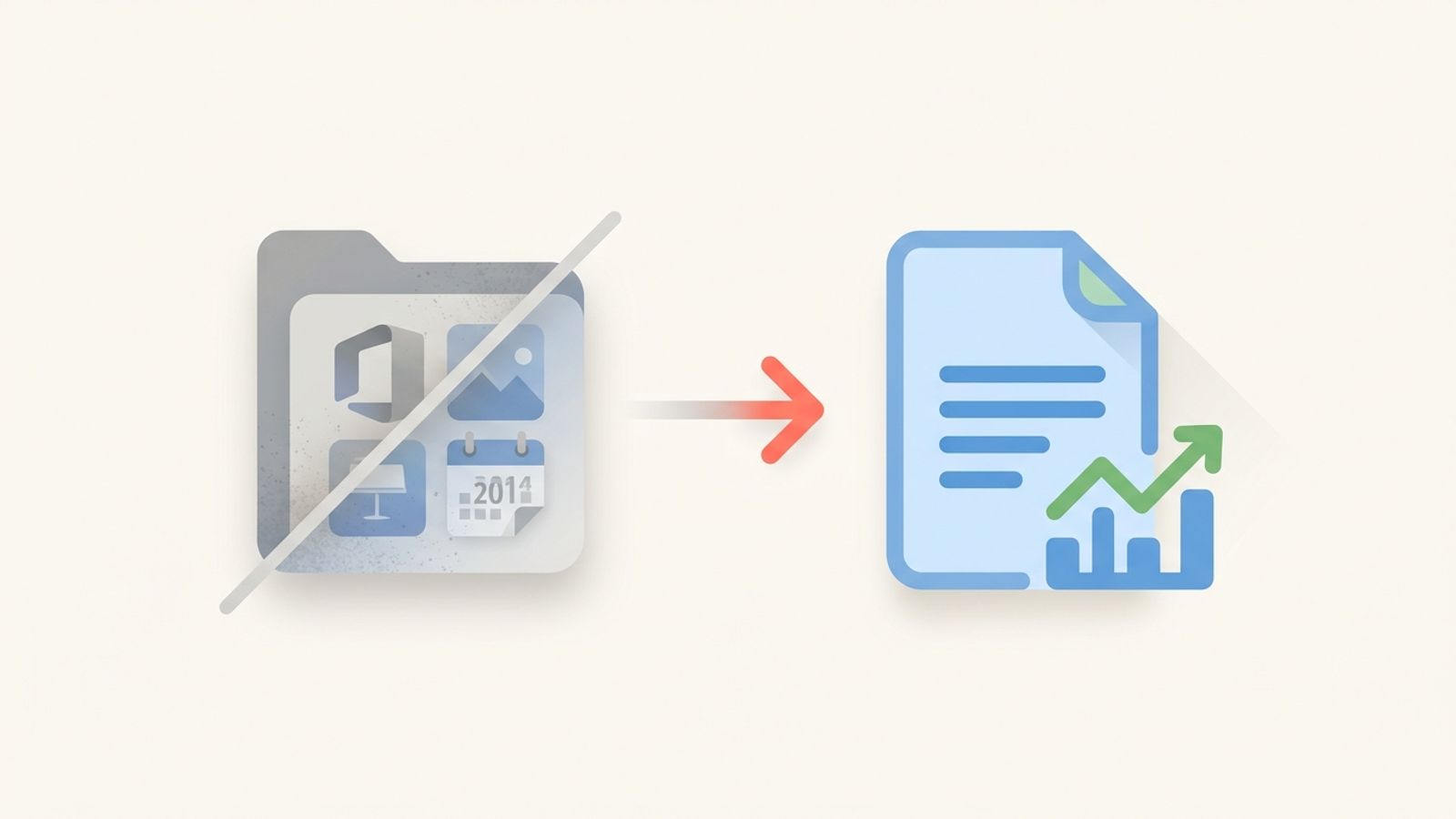
This is the article that exists because people Google "OpenOffice resume template" in 2026 and need to be told to stop. Apache OpenOffice has been mostly dead for over a decade. Its last significant feature release was version 4.1 in 2014. Since then, the project has shipped only minor security patches, often months or years after the equivalent fix landed in LibreOffice.
There is no upside to using OpenOffice in 2026. There is no resume template, file format, or workflow that OpenOffice supports and LibreOffice does not. The two suites use the same .odt and .ods file formats. Your old OpenOffice files open in LibreOffice without conversion, with the same fonts, the same layout, the same everything. The only thing different is that LibreOffice has 12 years of additional development, faster security patches, and a maintained codebase.
If you came here looking for OpenOffice resume templates, the short version: install LibreOffice instead, and the same templates you would have used in OpenOffice work in it (often better). The article continues for the people who want the why and the migration steps.
“Be aware that OpenOffice has year-old unfixed security issues and is no longer getting updates, so it's strongly not recommended. Indeed, its last major new-feature update was in 2014. You might have more luck with the actively maintained successor project, LibreOffice — based on OpenOffice, still free and open source, but with huge improvements everywhere and vital fixes.”
Mirrai Careers
Match your resume to any job in seconds
Upload your resume, paste a job description, see your match score.
Try FreeFree month of Pro with code LAUNCH
The Short Answer: Don't Use OpenOffice in 2026
Three options for resume work, ranked from worst to best for 99% of users:
- Apache OpenOffice. Last feature update 2014. Slow security patches (months to years late). Minimal community support. No active development team. Avoid.
- LibreOffice. Active development, semi-annual major updates, fast security patches, large community, identical .odt file format compatibility with OpenOffice. The successor project that almost everyone in the open-source world uses now.
- Google Docs. Free, in-browser, real-time collaboration, ATS-friendly export. The best option for users who do not need offline editing or full local control.
If you have OpenOffice installed: switch to LibreOffice. The migration takes 5 minutes (covered below). If you are starting fresh and were considering OpenOffice: skip it, install LibreOffice or use Google Docs.
The Last Major OpenOffice Update Was 2014. Here's What That Means.
Apache OpenOffice 4.1 shipped in April 2014 with new features. Every release since then (4.1.1, 4.1.2, all the way to 4.1.16 in 2025) has been a maintenance release: bug fixes and security patches, no new functionality. That is twelve years of:
- No improvements to the PDF export pipeline. Modern font handling, security tags, and text-layer accuracy fixes that LibreOffice received over a decade did not land in OpenOffice.
- No DOCX compatibility updates. Microsoft Word's file format has shifted multiple times since 2014 (introduced new fields, header types, and tracked-change formats). OpenOffice writes DOCX files using the 2014 understanding of the format. Modern Word usually opens them, but edge cases drift.
- Slow security response. The Apache OpenOffice team patched 7 CVEs in 2025 (CVE-2025-64401 through CVE-2025-64407, fixed in version 4.1.16). LibreOffice typically patches comparable issues in days or weeks. OpenOffice patches in months.
- No new features. Auto-recovery, better track-changes UI, modern dialog boxes, dark mode, sidebar improvements, all the things that arrived in LibreOffice between 2014 and 2026, did not arrive in OpenOffice.
The Apache Software Foundation's own docs admit the project "has struggled since 2015 to attract and retain enough contributors to sustain active development and to provide timely security updates." That is the official position. Reading between the lines: the project is on life support, not dead, but not growing.
Are You Sure You Have OpenOffice? Most People Have LibreOffice
Common confusion: someone says "I use OpenOffice" and actually has LibreOffice installed. The two suites look similar, share file formats (.odt), and many Linux distributions switched defaults from OpenOffice to LibreOffice years ago. Ubuntu switched in 2011. Fedora switched even earlier. Most modern Linux desktops you sit in front of in 2026 ship with LibreOffice, not OpenOffice.
How to check what you actually have:
- On Linux: open a terminal and run `which libreoffice` and `which openoffice`. The one that returns a path is the one you have.
- On Windows: open Start menu, search for "office." LibreOffice apps show up as "LibreOffice Writer," "LibreOffice Calc," etc. OpenOffice apps show as "OpenOffice Writer" or "Apache OpenOffice."
- On Mac: open Applications folder. Look for "LibreOffice.app" or "OpenOffice.app."
- Inside the app: Help > About. The dialog box clearly says "LibreOffice X.Y.Z" or "Apache OpenOffice 4.1.X."
If you discover you have LibreOffice and have been calling it OpenOffice: this article does not apply to you in any practical sense, except to clear up the naming. Your resume work is fine. Read our LibreOffice article instead.
If you actually have OpenOffice and want a deeper LibreOffice intro: our LibreOffice resume guide covers the templates, the parser quality, and the DOCX round-trip story.
What Actually Breaks: Stale PDF Export, Outdated DOCX, Security Holes
Three concrete things that go wrong specifically because OpenOffice is unmaintained.
1. PDF export is stuck in 2014
OpenOffice's PDF export pipeline produces text-layer PDFs that mostly work with modern ATS, but the implementation has not been updated since the project went into maintenance mode. Specific issues that have been fixed in LibreOffice but not in OpenOffice:
- Font subsetting bugs that occasionally drop glyphs from less-common fonts (the kind that show up as boxes or question marks in the PDF).
- Tagged PDF generation (the accessibility-and-parsing-friendly metadata) is older and less complete in OpenOffice. Modern ATS that read tagged PDFs prefer the LibreOffice version.
- Image embedding sometimes flattens text rendered on top of background shapes, which then becomes invisible to parsers.
In practice: an OpenOffice-exported PDF works most of the time. But "most of the time" for an application that depends on getting through ATS is a worse bet than "always" from LibreOffice.
2. DOCX writing predates modern Word
Microsoft has updated the .docx specification multiple times since 2014. New field codes, new content controls, new tracked-changes formats, new accessibility tags. OpenOffice does not know about any of these. It writes DOCX as if Word was still on its 2014 version.
When a recruiter or hiring manager opens an OpenOffice-saved .docx in modern Word, simple resumes still render correctly. But the file metadata is older, the styles map differently, and any modern Word feature you tried to use (which OpenOffice ignored on read) gets stripped on save. For pure document creation that goes one-way to a parser, this rarely matters. For collaboration with anyone using current Word, it does.
3. Security holes get patched, but slowly
CVE-2025-64407, disclosed in November 2025, allowed URL fetching to exfiltrate arbitrary INI file values and environment variables. Patched in 4.1.16. CVE-2025-64405, also November 2025, allowed Calc spreadsheets to load external content without user prompts. Patched in 4.1.16. Both vulnerabilities were specific to OpenOffice and did not affect LibreOffice (which has different code paths for those features). The pattern: OpenOffice has its own bugs that LibreOffice does not have, and they get patched on the OpenOffice schedule, which is slower.
For a job seeker writing resumes, none of this is an immediate threat. For someone using the same office suite to handle financial documents, contracts, or anything else important, the slow patch cycle is a real risk.
The Migration Path: OpenOffice to LibreOffice in 5 Minutes
LibreOffice opens every OpenOffice file with no conversion needed. The .odt format is shared. Your existing resume work moves over instantly. Step by step:
- Download LibreOffice from libreoffice.org. Pick the "Fresh" version for latest features, or "Still" for stability. Both are fine for resumes.
- Install. Windows: run the .msi. Mac: drag the .app to Applications. Linux: install via your package manager (apt install libreoffice on Debian/Ubuntu, dnf install libreoffice on Fedora).
- You can keep OpenOffice installed alongside LibreOffice if you want a transition period. They do not conflict. After a few weeks of using LibreOffice, uninstall OpenOffice.
- Open your existing OpenOffice resume files in LibreOffice. Right-click the .odt > Open With > LibreOffice Writer. The file looks identical, fonts render the same, layout is preserved. Edit, save, export to PDF as normal.
- Optional: change the default app for .odt files to LibreOffice (Windows: right-click > Properties > Open With > Change). On Linux, this typically already happens during install.
Total time: download 10 minutes, install 2 minutes, verify your existing files open correctly 1 minute. The "5 minute switch" is mostly waiting for the download.
5 Resume Templates That Work in OpenOffice (and Better in LibreOffice)
Because both suites use the same .odt format, every template marketed as "OpenOffice" or "LibreOffice" works in either. Five free, single-column, ATS-safe templates worth using:
- LibreOfficeTemplates.net "Professional Resume Letter": clean serif, works for any industry. Direct .ODT download. Drops into either suite without conversion.
- Resume Genius LibreOffice/OpenOffice template pack: about 10 templates, all .ODT, all single-column or near-single-column. Specifically marketed for both suites.
- Zety OpenOffice/LibreOffice templates: 12+ options, varied section ordering, useful for non-traditional resume structures (career changers, gaps, multiple parallel roles).
- ResumeLab template selection: 15+ templates with slightly more design variety. Same shared .ODT format.
- A Simple Resume Template (extensions.libreoffice.org): official LibreOffice extensions repository template. Minimal, reliably parser-safe. Also opens in OpenOffice but you should not be using OpenOffice anyway.
Pattern across all of these: pick one template, download, customize it once, reuse for future applications. The 30 minutes upfront saves you from dealing with template selection on every application.
How to Build a Resume in OpenOffice (or, Better, LibreOffice) from Scratch
If templates do not fit, building from scratch takes 30 minutes. The instructions are nearly identical for OpenOffice and LibreOffice because the apps are similar. Where they differ, both versions are noted.
- File > New > Text Document. Set page size: Format > Page Style > Page tab. Letter (US) or A4 (everywhere else).
- Margins: 1 inch (US) or 2.54 cm. Set in the same Page Style dialog under Margins.
- Pick a font: in OpenOffice, "Arial" or "Times New Roman" if available, otherwise the bundled "DejaVu Sans" works. In LibreOffice, "Liberation Sans" (Arial replacement) or "Liberation Serif" (Times replacement).
- Body text 11pt, section headings 12pt bold, name at top 18-20pt bold.
- Header (your name and contact line) goes in the body of the document, NOT in the page Header (Insert > Header). ATS strips page headers.
- Sections in order: Summary, Experience, Education, Skills. Use Heading 2 paragraph style for section titles.
- For each role: Heading 3 with title and company, plain text dates and location, then a bulleted list (3-5 achievements). Use the built-in bullet (• character) at one indent level.
- Skills section: single bulleted list or one line of pipe-separated text. No bars, ratings, or icons.
- File > Export as PDF (LibreOffice) or File > Export as PDF (OpenOffice). In the dialog, leave defaults except "Tagged PDF" which you should check for accessibility and slightly improved ATS parsing.
OpenOffice vs LibreOffice vs Word vs Google Docs
Honest comparison.
| OpenOffice | LibreOffice | Word | Google Docs | |
|---|---|---|---|---|
| Last major feature update | 2014 | 2026 (active) | 2026 (active) | 2026 (active) |
| Security patch speed | Months to years | Days to weeks | Days | Days |
| Free | Yes | Yes | No (Office 365) | Yes |
| ATS-safe export | Good (older code) | Excellent | Excellent | Excellent |
| Resume templates available | ~20 (shared with LO) | ~20-30 | ~50+ | ~5 built-in + library |
| Active community | Minimal | Large | Massive | Massive |
| Recommended for resumes | No, switch | Yes | Yes | Yes |
OpenOffice is the only entry in this table where the answer is "switch." Every other tool is a reasonable choice for some use case. OpenOffice is not. Move to LibreOffice and lose nothing.
Want to skip the office-suite question entirely? Mirrai's Resume Builder generates parser-safe, single-column PDFs without picking a tool, font, or template. Free to try.
Common OpenOffice Resume Mistakes That Are Easy to Avoid
- Sticking with OpenOffice because "the file works" instead of switching. Your file works in LibreOffice too, with no migration cost.
- Saving as .odt and uploading the .odt file to a job portal. Most ATS do not parse .odt. Always export to PDF or save as .docx before uploading.
- Using "Print > PDF" instead of File > Export as PDF. The print path sometimes produces flat, image-flavored PDFs in older OpenOffice. Always use the explicit Export menu.
- Putting contact info in the page Header. ATS strips the page header. Put contact info in the body.
- Two-column resume layouts. Same problem as in any tool: parser reads horizontally across columns, scrambles content. Stay single column.
- Using OpenOffice features that LibreOffice has improved (track changes, table layout, list numbering) without realizing the improved versions exist next door for free.
- Trusting OpenOffice as a long-term plan for any document workflow when there is an actively-maintained, file-compatible alternative.
Related Reading
Where to go after switching from OpenOffice: LibreOffice (the actively-maintained successor), Word resume templates, Google Docs templates, and ATS-friendly resume template explained.
Before you leave
See how your resume stacks up
Paste any job description and get your match score in 30 seconds.
Try FreeFree month of Pro with code LAUNCH
FAQ
Will my old OpenOffice resume files open correctly in LibreOffice?
What is the fastest way to make a resume in OpenOffice (or LibreOffice) from scratch?
Is OpenOffice still safe to use in 2026?
Can I move my OpenOffice files to LibreOffice?
Are OpenOffice resume templates ATS-friendly?
Why does OpenOffice still exist if LibreOffice is better?
What happens if I just keep using OpenOffice for my resume?
Bottom Line
Apache OpenOffice has been on life support since 2015. The last significant feature update was 2014. Security patches arrive months or years after the equivalent fix in LibreOffice. The Apache Software Foundation itself acknowledges the project struggles to maintain timely updates. For resume work, OpenOffice usually works, but "usually" is a worse bet than the actively-maintained alternative that uses the exact same file format.
Switch to LibreOffice. The migration takes 5 minutes, your files come over with no conversion, and the resume templates marketed as "OpenOffice" all work in LibreOffice anyway. There is no reason to stay on OpenOffice in 2026 except inertia.
Or skip both. Try Mirrai's Resume Builder. Browser-based, parser-safe by default, no install or migration, no Apache vs Document Foundation politics.